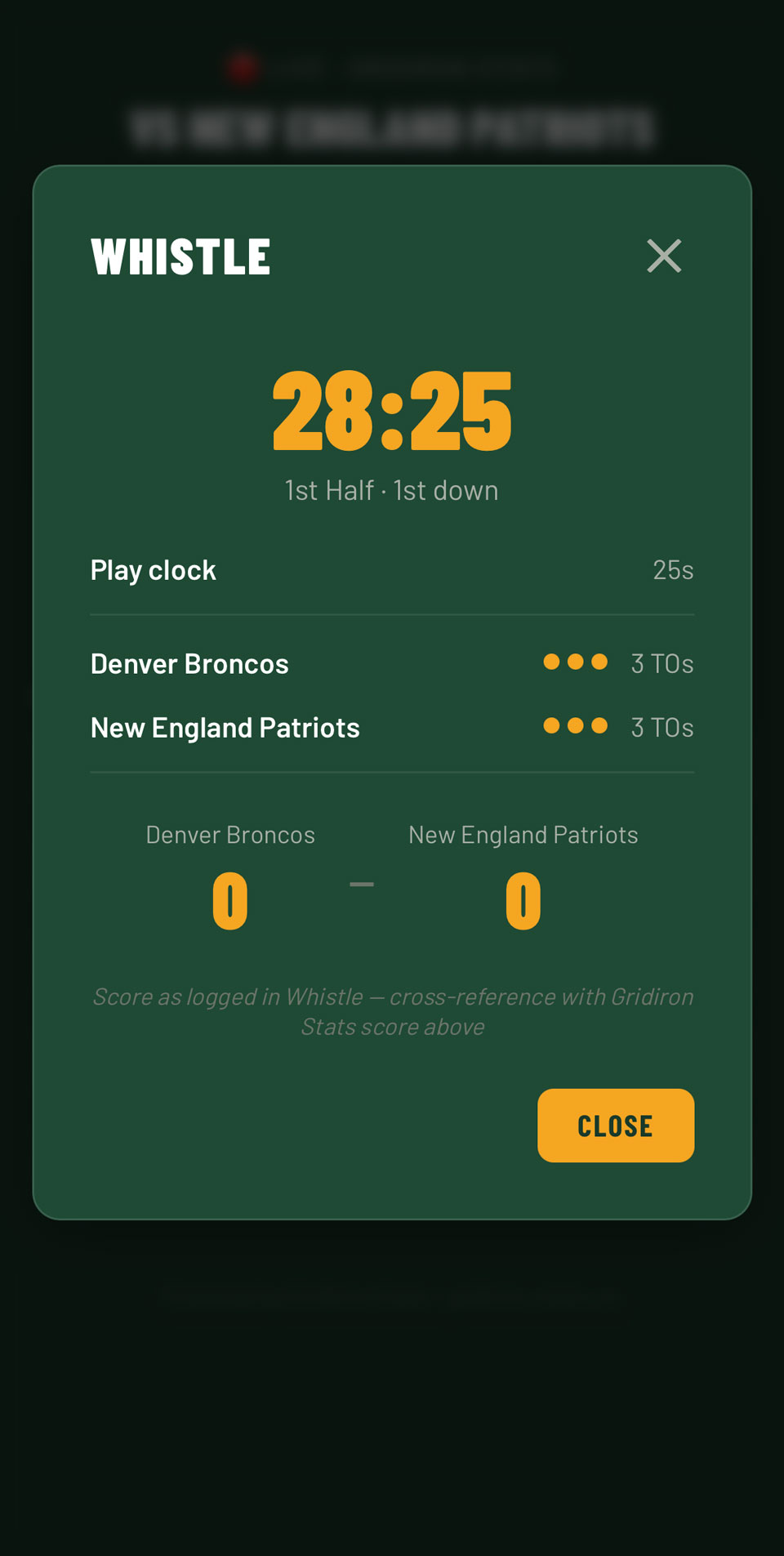
Whistle
HOw does it work?
Looking for the Gridiron Stats help?
Setup
On the game settings screen enter the location and team names. You can choose from the drop-down or type in a custom team name.
These are optional. You can just click ‘Start Game’ for a quick start (teams will be named Team 1 & Team 2).
You can set minutes per half, the play clock time (in seconds), and the number of timeouts per half.
Click the button if you need a coin toss and then click ‘Start Game‘.
Game Play
- Game Clock: Start and stop as needed. Resetting will reset the number of timeouts for the second half.
- Play Clock: With ‘Auto Advance’ selected, starting the play clock will advance the downs.
- Downs: The down can be manually advanced by clicking the numbers.
- Scoring: Click the buttons to add specific scores or use + and – to manually alter the score. When clicking a button you’ll be able to enter the players numbers to fill out the score log.
- Defensive Stats: Click the button to add a player number in the right field to log a defensive stat.
- Timeouts: Click the blue circles to take a timeout. This will automatically pause the game clock.
Other actions
- Undo: This button will undo a timeout or score.
- Penalties: This will bring up a searchable list of penalties with description, yards lost etc.
- End Game: You’ll get a confirmation pop-up just in case!
Share
You can share a link, via a QR code, with a head ref, scorer, clock manager and coach.
- Head Ref: can manage the clocks, downs and timeouts but not the score.
- Scorer: can only manage the scores.
- Clock: can manage game clocks and downs.
- Coach/Viewer: can only view.
Linking with Gridiron Stats
Share the game code or any of the QR codes with the Gridiron Stats app to view clock, score, downs and timeouts in the live view.