Gridiron Stats
HOw does it work?
Looking for Help with Whistle?
Please note
All features currently require an internet connection. We’re working on an app to enable full offline usage.
Getting Started – adding & joining teams
When you first login you’ll have the option to create a team. Enter the team name, season, choose flag or contact and add an optional description. Choosing flag or contact will determine the player positions and stats that can be tracked.
If you create a team you’ll be the admin and get two share codes…
- A Join Code for coaches and others who you want to give permission to manage the team and,
- A View Code for anyone who just wants to follow along.
Share these via the Share Codes button on the My Teams page.
Or, you can join an existing team…
If you just want to join a team click ‘Join with a code’. Your head coach or admin will have provided you with either a join or view only code. Select the right option, enter the code and click ‘Join Team’.
Players
- Add your roster manually by entering names one by one or importing a CSV file (see below for a template) with a list of all players. You can set jersey numbers and positions as you add players.
- Once added you can mark players as active or inactive. Inactive players are hidden from the stat logging screen.
- You can export a CSV of your current roster on the players page and export a PDF stat log for individual players from the player profile page.
Games
- Schedule your games in advance with opponent, date, time, location and choose home or away.
- You can also set a game type – regular, friendly, playoff or finals. Friendly games don’t count toward the season leaderboad.
- On game day you can tap through to the game to log stats live. You can manually update/adjust the score at any time and use the Start Game / End Game button to control the live status.
Logging Stats
- On the game screen, tap
Log Stat to quickly log a play. Choose the stat type first, then select the player(s).
- Or tap a player directly from the roster to log a stat for them.
- You can optionally attach a play and add notes to each stat.
- Opponent scores can be logged separately using the Opponent Score button.
- Logging a scoring stat will automatically update the score.
- If you make any mistakes or miss a stat you can manually adjust the score and a reason to the log.
- If you’d rather track your stats on paper you can enter them later on the app.
- Currently the app requires an internet connection to work. We’re working on a native app for iOS and Android which will allow offline logging on game day.
- Once logged you can download a PDF of all game stats.
Live Game View
Every game has a public Live View page you can share with parents and supporters — no login required. You can copy and paste the link into a message or show the QR code.
It shows the score, game status, and a live play-by-play feed that updates automatically. Tap Live View on any game page to copy the link. The feed goes live when you tap Start Game.
Whistle Integration
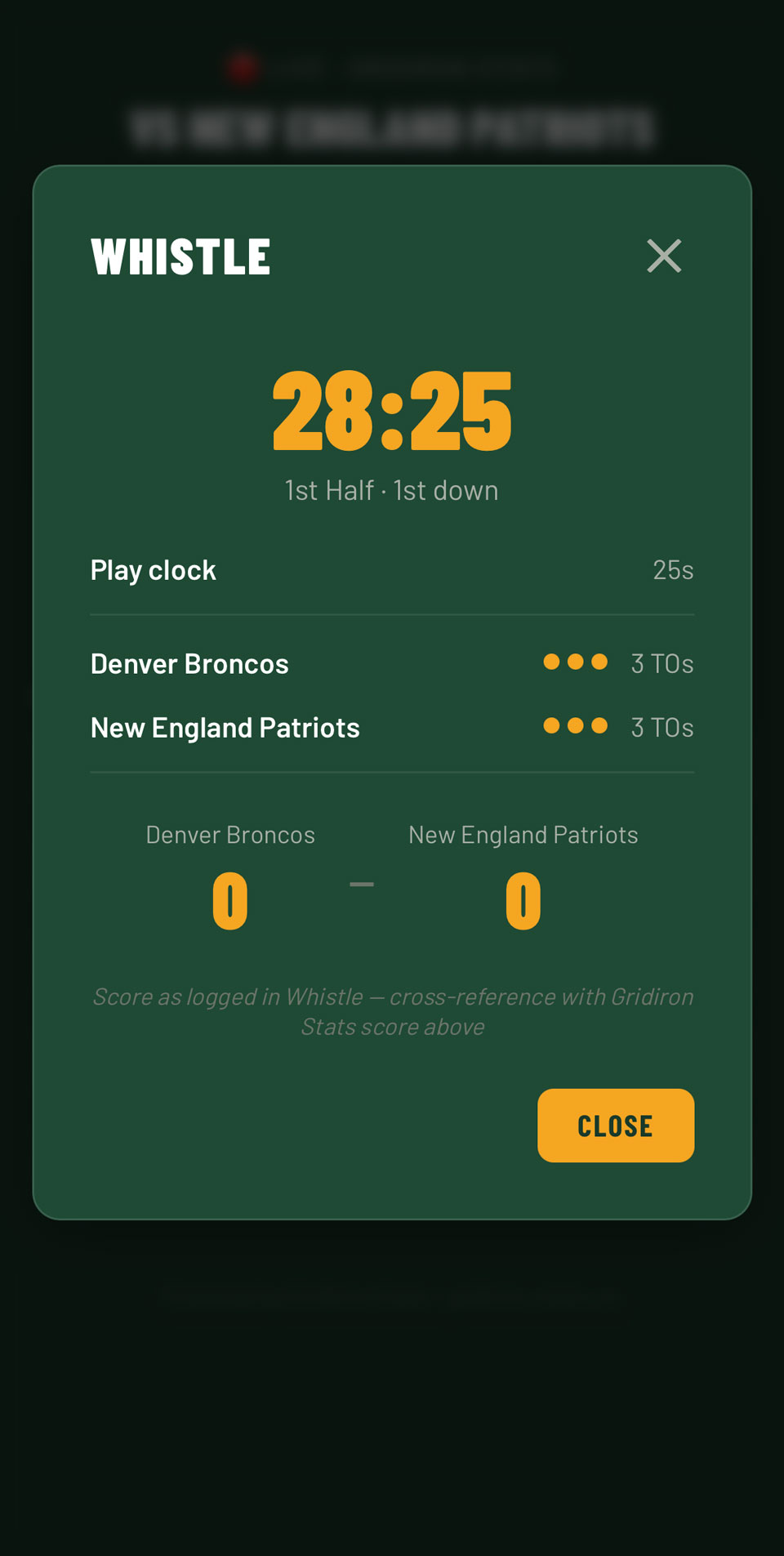
If the referee is using the Whistle app, you can link it to a game to show the live game clock, play clock, current down, and timeouts remaining alongside your stats.
Tap Connect Whistle on the game page and paste the Whistle share URL or scan the QR code from the Whistle share screen. The Whistle strip appears on both the game page and the Live View.
Plays
Admins & coaches can add a playbook under the Plays tab. Plays are split into offense and defense, and when logging stats the relevant plays are automatically filtered. Plays are tied to a season so you can build a new playbook each year. You can copy plays from a previous season to save time.
Leaderboard
The Leaderboard tab shows season totals for every player across all non-friendly games. Use the CSV export to download a full stats spreadsheet.
Roles
Admin
Full control. Manage the roster, set up plays, log stats, connect Whistle, export data, edit team settings and manage billing.
Coach
Can manage the roster, log stats, add and edit games, set up plays, connect Whistle and export data. Can’t manage team members, create or delete teams, or manage billing.
Viewer
Follow the action. Read-only access — great for parents, supporters and anyone who just wants to watch the numbers come in. Share the view code to invite them.